


About this setup
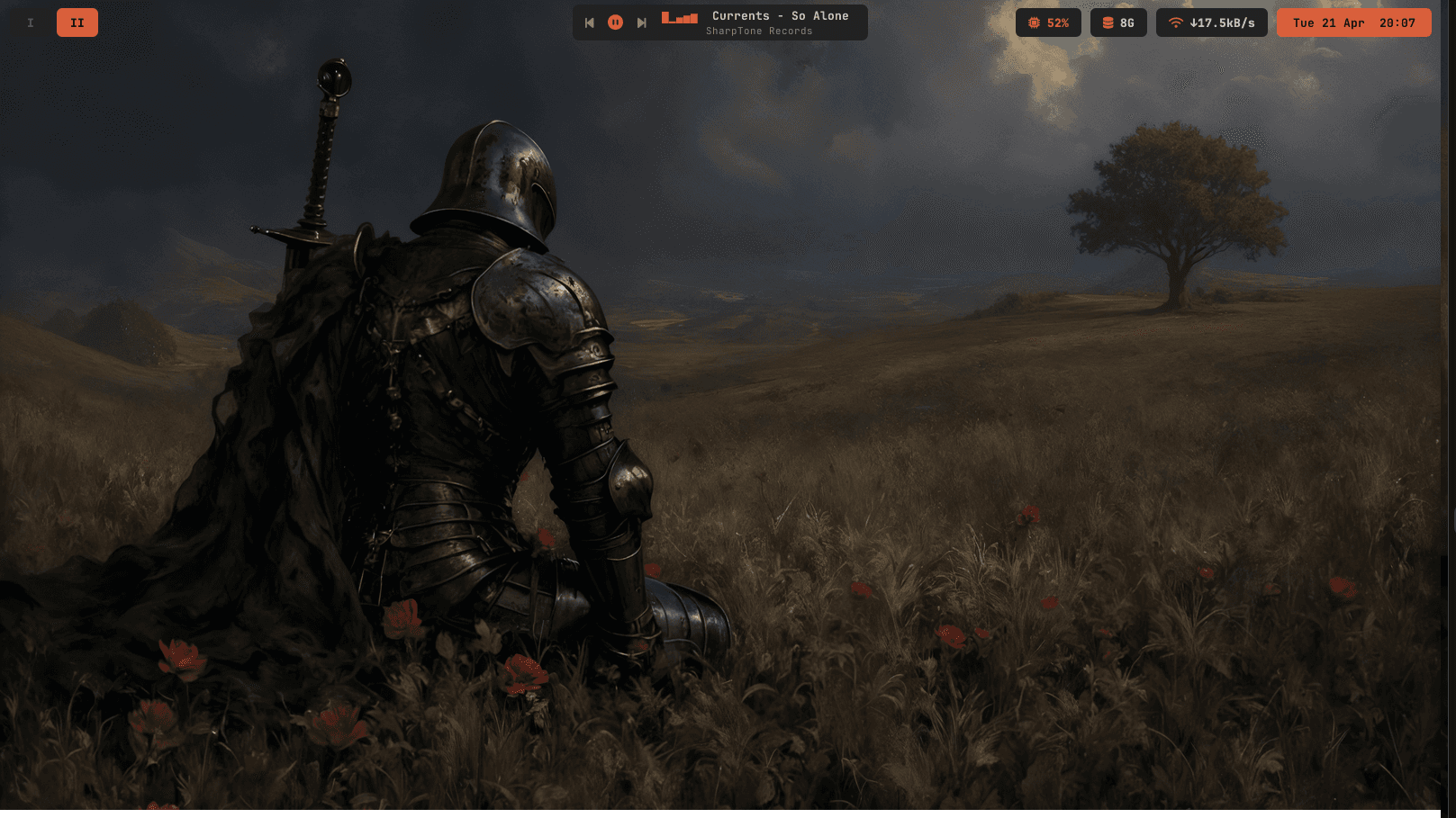
Emberline Waybar is a compact Waybar rice with: - Left-side Roman numeral workspaces. - Center media controls with `previous / play-pause / next` grouped together on the left of the player. - A scrolling MPRIS media title, artist line, animated playing state, and a clean idle state. - Right-side CPU, memory, network, and day/date/time clock.
Installation Instructions
Prerequisites
OS Compatibility
Linux
Shell
Zsh, Bash
Difficulty
beginner
Download Size
6.7 MB
Quick Setup
Emberline Waybar
Emberline Waybar is a compact Waybar rice with:
- Left-side Roman numeral workspaces.
- Center media controls with
previous / play-pause / nextgrouped together on the left of the player. - A scrolling MPRIS media title, artist line, animated playing state, and a clean idle state.
- Right-side CPU, memory, network, and day/date/time clock.
This rice is distro-portable, but it is Wayland-specific because Waybar is a Wayland bar. It will work on any Linux distro that can install Waybar, playerctl, JetBrains Mono, and Font Awesome. Workspace support depends on the Wayland compositor, so the installer can auto-detect common ones or you can choose the module manually.
Fast Install
From this folder:
bash install.shThe installer will:
- Install packages when it recognizes your package manager.
- Back up any existing
~/.config/waybarto~/.config/waybar-backups/. - Copy this rice into
~/.config/waybar. - Detect a workspace module for Hyprland, Sway, Niri, or use
ext/workspacesby default. - Reload a running Waybar, or start Waybar if you are in a Wayland session.
Useful installer options:
bash install.sh --skip-packages
bash install.sh --workspace-module hyprland/workspaces
bash install.sh --workspace-module sway/workspaces
bash install.sh --workspace-module niri/workspaces
bash install.sh --workspace-module wlr/workspaces
bash install.sh --workspace-module ext/workspaces
bash install.sh --no-reload
bash install.sh --dry-run
Requirements
Required:
waybarplayerctlbashsed- A Wayland session
- An MPRIS-compatible music app for metadata and controls
Fonts:
- JetBrains Mono
- Font Awesome or Font Awesome 6 Free
Optional:
jq, only used by the installer to validate the Waybar config after copying.
The music player integration is playerctl. It talks to any MPRIS-compatible player, such as Spotify, Strawberry, VLC, mpv with MPRIS support, many browser players, and similar apps. No single music player is hardcoded.
Manual Install
1. Install Packages
Install the packages for your distro.
Debian, Ubuntu, Linux Mint:
sudo apt-get update
sudo apt-get install waybar playerctl fonts-font-awesome fonts-jetbrains-mono
Fedora:
sudo dnf install waybar playerctl fontawesome-fonts-all jetbrains-mono-fontsArch, EndeavourOS, Manjaro:
sudo pacman -S --needed waybar playerctl ttf-font-awesome ttf-jetbrains-monoopenSUSE:
sudo zypper install waybar playerctl fontawesome-fonts jetbrains-mono-fontsAlpine:
sudo apk add waybar playerctl font-font-awesome font-jetbrains-monoVoid:
sudo xbps-install -Sy waybar playerctl font-awesome6 ttf-jetbrains-monoNix profile:
nix-env -iA nixpkgs.waybar nixpkgs.playerctl nixpkgs.font-awesome nixpkgs.jetbrains-monoPackage names for fonts vary more than waybar and playerctl. If a font package name fails, install the closest JetBrains Mono and Font Awesome package from your distro and continue.
2. Copy Config Files
From this rice folder:
mkdir -p ~/.config/waybar/scripts

cp waybar/config ~/.config/waybar/config
cp waybar/style.css ~/.config/waybar/style.css
cp waybar/scripts/media.sh ~/.config/waybar/scripts/media.sh
cp waybar/scripts/media-play.sh ~/.config/waybar/scripts/media-play.sh

chmod +x ~/.config/waybar/scripts/media.sh
chmod +x ~/.config/waybar/scripts/media-play.sh
3. Pick The Workspace Module
The packaged config defaults to:
ext/workspacesThat is useful for compositors/desktops that expose the ext workspace protocol. For common compositors, change both occurrences of ext/workspaces in ~/.config/waybar/config:
sed -i 's|ext/workspaces|hyprland/workspaces|g' ~/.config/waybar/configUse one of these:
ext/workspaces
hyprland/workspaces
sway/workspaces
niri/workspaces
wlr/workspaces
If workspace clicks or labels do not work, the workspace module is the first thing to adjust.
4. Start Or Reload Waybar
If Waybar is already running:
pkill -x waybar
nohup waybar >/tmp/emberline-waybar.log 2>&1 &
If Waybar is not running:
waybar &If you are not inside a Wayland session yet, log into your Wayland compositor first.
Autostart
Hyprland:
exec-once = waybarSway:
exec waybarNiri:
spawn-at-startup "waybar"Other desktops:
- Add
waybarto your desktop environment's startup applications. - Or add
waybar &to your compositor startup file.
Media Controls
The player uses these commands:
playerctl previous
playerctl play-pause
playerctl next
playerctl metadata title
playerctl metadata artist
Test your player with:
playerctl status
playerctl metadata title
If those commands return data, the Waybar player should show the same track. If they do not, your music app is not exposing MPRIS metadata or it needs an MPRIS plugin.
Customization
Accent color:
#D95F3BSearch for it in waybar/style.css and replace it with your color.
Clock format:
"format": "{:%a %d %b %H:%M}"Edit it in waybar/config.
Scrolling title length:
MAX_LEN=35Edit it in waybar/scripts/media.sh.
Workspace labels:
Edit format-icons in waybar/config. The packaged config includes I through XII.
Troubleshooting
Waybar does not start:
waybar -c ~/.config/waybar/config -s ~/.config/waybar/style.css -l debugIcons show as boxes:
- Install Font Awesome.
- Run
fc-cache -fv. - Restart Waybar.
Music says no music playing:
- Start an MPRIS-compatible player.
- Run
playerctl status. - If the player is in a browser, enable media session support in that browser.
Workspaces show dots or do not click:
- Use the right workspace module for your compositor.
- Run the installer with
--workspace-module MODULE, or edit~/.config/waybar/configmanually.
Restore the old config:
- The installer stores backups under
~/.config/waybar-backups/. - Copy a backup back to
~/.config/waybarand reload Waybar.